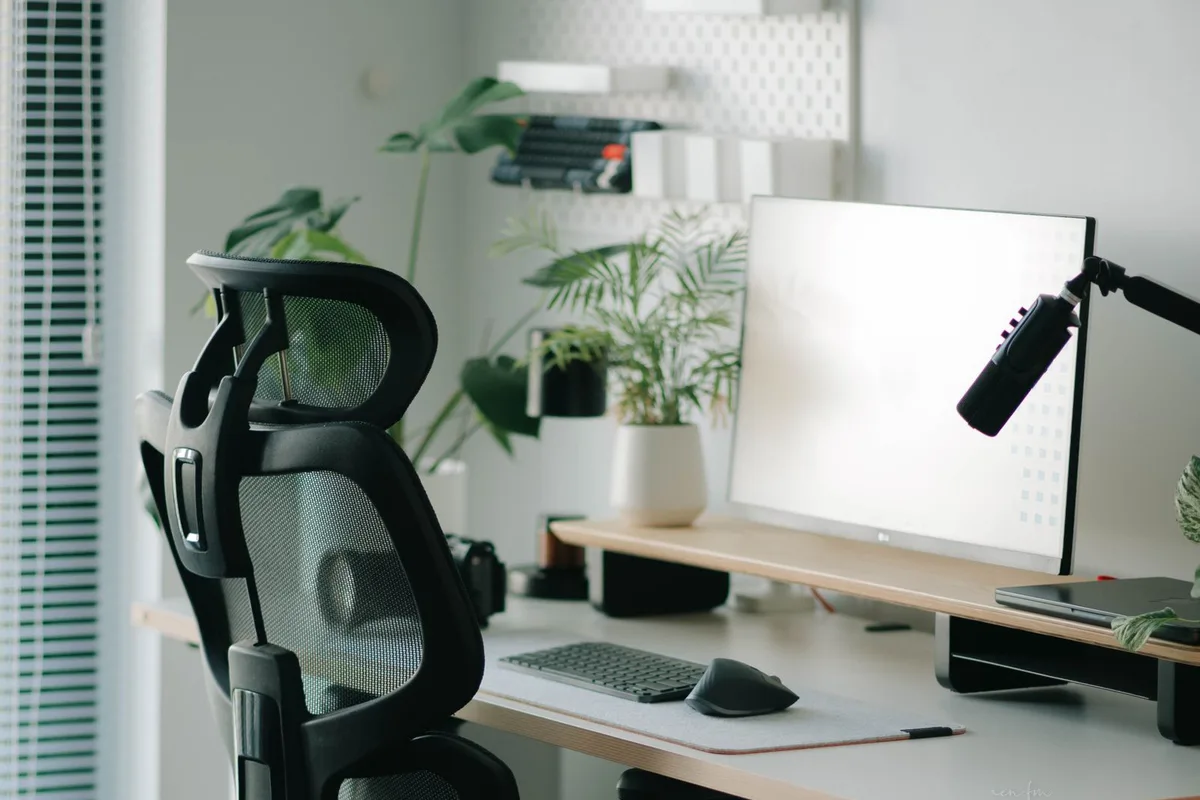
An ergonomic desk setup lets you work without straining your neck, back, shoulders or wrists. The basics: sit back in a supportive chair with your feet flat, put your screen about an arm’s length away with the top near eye level, and keep your keyboard low enough that your elbows rest near a 90-degree angle with straight wrists. Then get up and move often. If you still have pain after adjusting your desk, a physical therapist can help through neck and spine therapy.
Your setup doesn’t need to be expensive. Many of the fixes below, like raising a screen or adding a footrest or cushion, cost little or nothing.
Why does an ergonomic desk setup matter?
The American Physical Therapy Association’s ChoosePT site notes that sitting for long periods at a workstation that isn’t set up properly can contribute to aches and pains. Hours of daily keyboard use can also mean poor circulation to joints and muscles.
A good setup works best alongside regular movement. For a daily routine to pair with your new setup, see our post on posture exercises for desk workers.
How to set up your chair
Start with the chair, since it sets the height for everything else.
- Sit all the way back. UCLA Health advises sitting back in the chair with good back support. Use the chair’s adjustments or a cushion to keep your back in contact with the backrest.
- Support your lower back. ChoosePT recommends a chair with good lower back support to help keep the natural curve of your spine. Cambridge University Hospitals (part of the NHS) suggests a rolled towel or lumbar roll if your chair needs extra support.
- Set the height. Your feet should rest flat on the floor or on a footrest. Cambridge University Hospitals suggests adjusting the chair so your hips are slightly higher than your knees. ChoosePT says your thighs should stay parallel to the floor or angle slightly downward.
- Add a footrest if needed. If raising your chair leaves your feet dangling, HSS (Hospital for Special Surgery) notes that a footstool can help.
ChoosePT also lists helpful chair features: five wheels for a stable base, a seat that swivels, adjustable height, and good lumbar support.
Where should your monitor be?
Where your screen sits shapes where your head and neck point all day.
- Distance: About an arm’s length away, according to ChoosePT, UCLA Health and Cambridge University Hospitals.
- Height: ChoosePT says the top of the monitor should be at or slightly below eye level. UCLA Health puts it a little more precisely: your eyes should line up with a point about 2 to 3 inches below the top of the monitor casing.
- Position: Directly in front of you, so you can read the screen without squinting or leaning forward or back, as ChoosePT advises.
If you wear reading glasses, ChoosePT notes you may need a separate pair for computer work, so you aren’t tilting your head to see.
How to position your keyboard and mouse
Your arms and wrists should feel relaxed while you type.
- Elbows: Keep your elbows close to your body at about a 90-degree angle, as ChoosePT suggests. UCLA Health says elbows should be at or greater than 90 degrees to avoid putting pressure on the nerve at the elbow.
- Forearms: ChoosePT recommends forearms parallel to the floor or angled slightly downward. Cambridge University Hospitals suggests the middle row of keys sit level with your elbow and forearm.
- Wrists: Keep them straight, not bent up or down. HSS advises keeping your wrists flat and neutral for as long as possible.
- Reach: Don’t stretch your arms or raise your shoulders to reach the keyboard, per ChoosePT. Cambridge University Hospitals suggests keeping the mouse within easy reach of the keyboard.
- Palm rests: UCLA Health advises using a palm support only when pausing between typing, not while you type.
If your keyboard sits too high, ChoosePT suggests adjusting your chair or desk, or using a keyboard tray. If you raise your chair, add a footrest so your feet stay supported.
Laptop ergonomics: what to do if you work on a laptop
Laptops are tricky because the screen and keyboard are attached, so it is hard to put both at a comfortable height at once.
HSS physical therapists note that long hours looking down at a laptop screen are a common cause of neck pain. Their suggestion is to use a separate keyboard and mouse. That frees you to raise the laptop to a better height with a laptop stand, or to use an external monitor.
Your ergonomic desk setup checklist
| Area | What to aim for |
|---|---|
| Chair | Sit all the way back with your lower back supported |
| Feet | Flat on the floor or on a footrest |
| Hips and knees | Hips level with or slightly higher than knees |
| Screen | About an arm’s length away, top near eye level, straight ahead |
| Elbows | Close to your sides, about 90 degrees or slightly more open |
| Wrists | Straight and neutral while typing |
| Mouse | Within easy reach of the keyboard |
| Laptop | Separate keyboard and mouse, screen raised |
| Breaks | Change position often; get up at least once an hour |
How often should you get up from your desk?
Even a perfect setup won’t help much if you sit still all day. Cambridge University Hospitals advises changing position regularly and says no one should sit for more than one hour. HSS recommends moving around at least once an hour.
ChoosePT suggests short “micro breaks” through the day, even 30 seconds out of your chair. During breaks, it suggests rolling your shoulders back, turning your head side to side, and stretching your forearms and legs. If you spend a lot of time on the phone, Cambridge University Hospitals suggests a hands-free headset if calls take up more than 40% of your day.
When to see a professional
Adjusting your workspace often eases the aches that come from desk work. It’s worth getting help if:
- Neck, back, shoulder or wrist pain continues after you’ve adjusted your setup and added breaks.
- You notice numbness, tingling or weakness in your hands or arms.
- Pain is affecting your sleep or your ability to work.
A physical therapist can check how you sit and move and find what is driving your pain. Hand and wrist symptoms, such as those linked to carpal tunnel syndrome, can be evaluated through hand and wrist therapy. See a doctor promptly if pain started after a fall or injury or comes with weakness that is getting worse.
How OneRehab can help
OneRehab’s physical therapists evaluate desk-related neck and back pain through our neck and spine therapy program, and we treat wrist and hand problems like carpal tunnel syndrome through hand and wrist therapy. We see patients at two clinics, in Dallas and Richardson. Book a free screen to have a licensed physical therapist or certified athletic trainer assess your pain and recommend next steps, or schedule an appointment. In Texas, you can see a physical therapist without a referral.
Common questions
What is the correct monitor height?
ChoosePT says the top of your monitor should be at or slightly below eye level, about an arm’s length away.
What is the right desk height for typing?
Aim for a height that lets your forearms stay parallel to the floor or angle slightly down, with your elbows close to your body at about 90 degrees, as ChoosePT describes.
Do I need a special ergonomic chair?
Not necessarily. Look for adjustable height, good lower back support and a stable base. A cushion, rolled towel or footrest can fill gaps.
How can I make my laptop more ergonomic?
Use a separate keyboard and mouse, then raise the laptop with a stand or use an external monitor, as HSS physical therapists suggest.
Can a bad desk setup cause pain?
It can contribute. ChoosePT notes that prolonged sitting at a workstation that isn’t set up properly can lead to aches and pains.
Sources
- Workplace Wellness: Office Ergonomics, ChoosePT (American Physical Therapy Association), revised December 20, 2018: https://www.choosept.com/health-tips/workplace-wellness-office-ergonomics
- Good Posture (Office Ergonomics), UCLA Health, n.d.: https://www.uclahealth.org/safety/ergonomics/office-ergonomics/good-posture
- Seating and Ergonomics, Cambridge University Hospitals NHS Foundation Trust, approved July 10, 2024: https://www.cuh.nhs.uk/patient-information/seating-and-ergonomics/
- 5 Items to Make Your Work-from-Home Setup More Ergonomic, Hospital for Special Surgery, published December 29, 2020: https://www.hss.edu/health-library/move-better/work-from-home-ergonomics